Connect Exness in Claude
Install the Exness plugin in Claude and authorize access to your Exness account. You can then use available Trading and Partnership tools directly in conversations with your AI assistant.
Install the Exness plugin
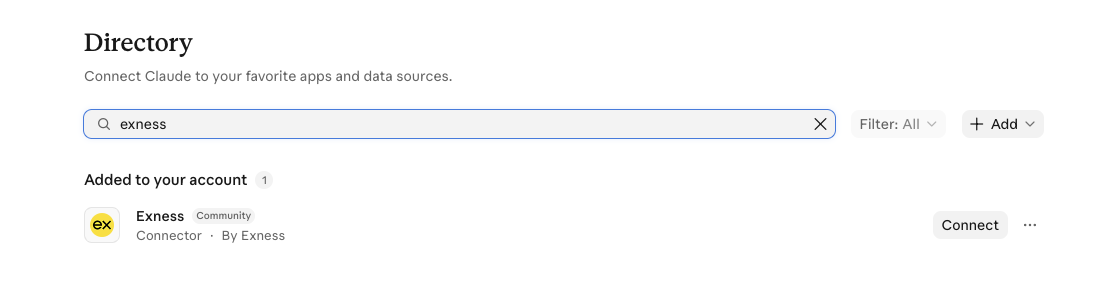
1. Find and connect Exness. In Claude web or Desktop, open Plugins and search for Exness. Check that the publisher is Exness, then select Connect. You can also open the Exness listing in Claude's Directory directly.
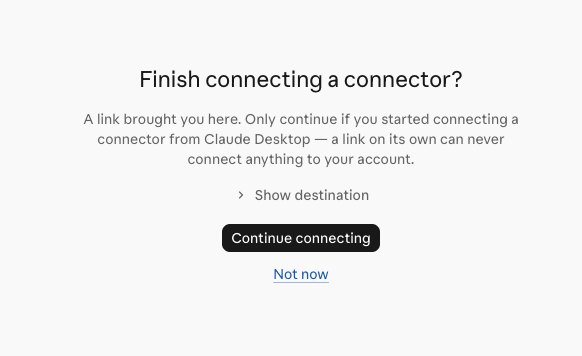
2. Continue in your browser. If the Finish connecting a connector? page appears, select Continue connecting. If you are not signed in to your Exness Personal Area, sign in as usual when prompted. You will then see the Exness authorization page.
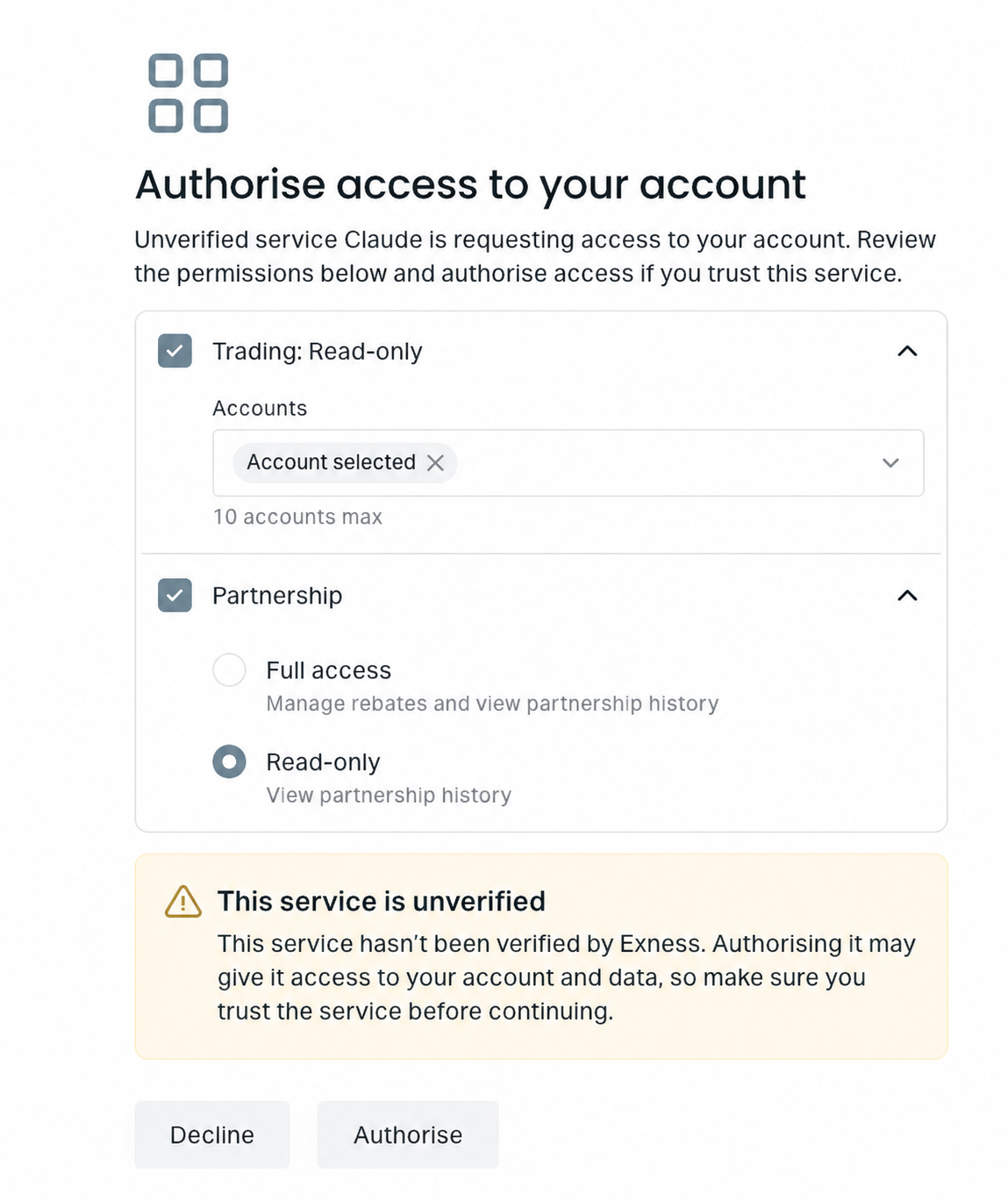
3. Authorize account access. Choose the Trading accounts and Partnership access you need, then select Authorise. Return to Claude when you finish.
If you need help, see Troubleshooting.