Connect Exness by URL in Codex
Connect Codex directly to the Exness MCP server using its URL, then authorize access to your Exness account. Follow the desktop steps below or use the command-line setup for Codex CLI.
Connect in Codex Desktop
These screenshots show Codex Desktop.
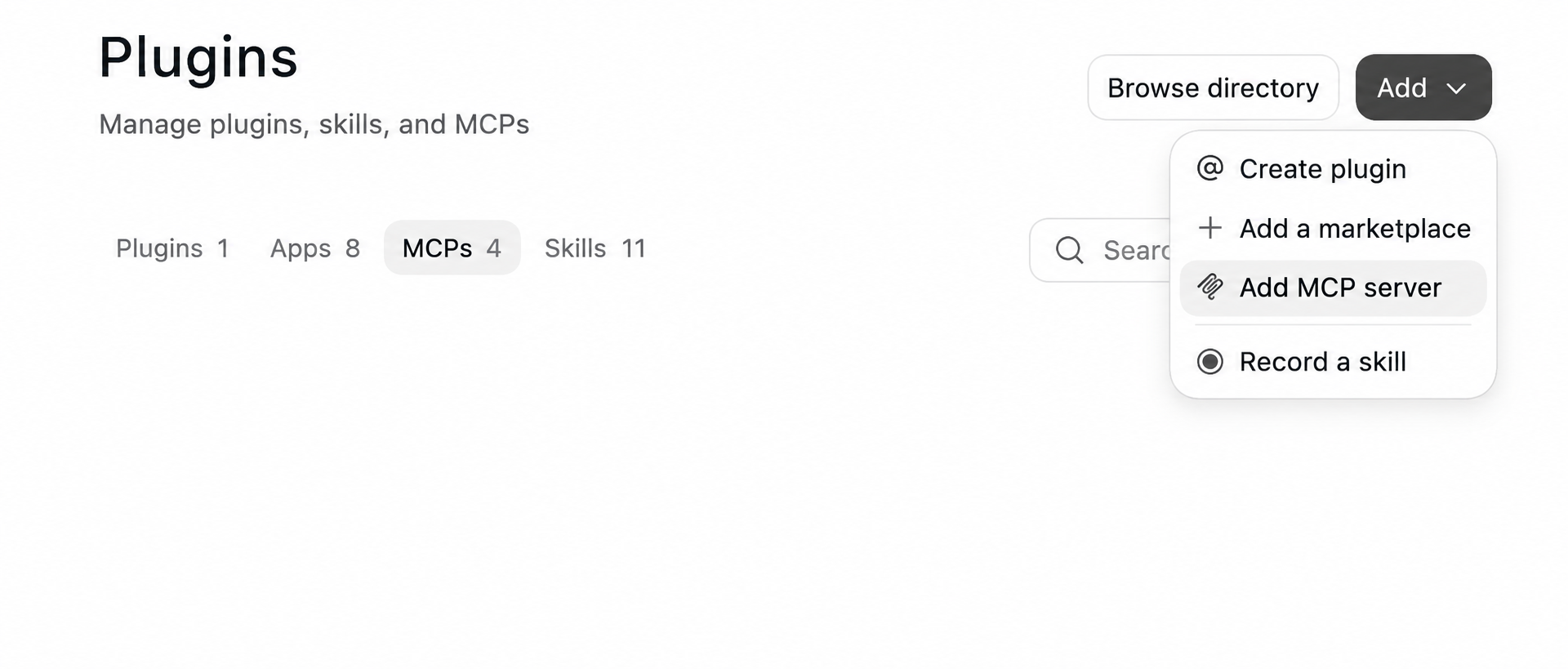
1. Add a custom MCP server. Go to Plugins → MCPs → Add → Add MCP server.
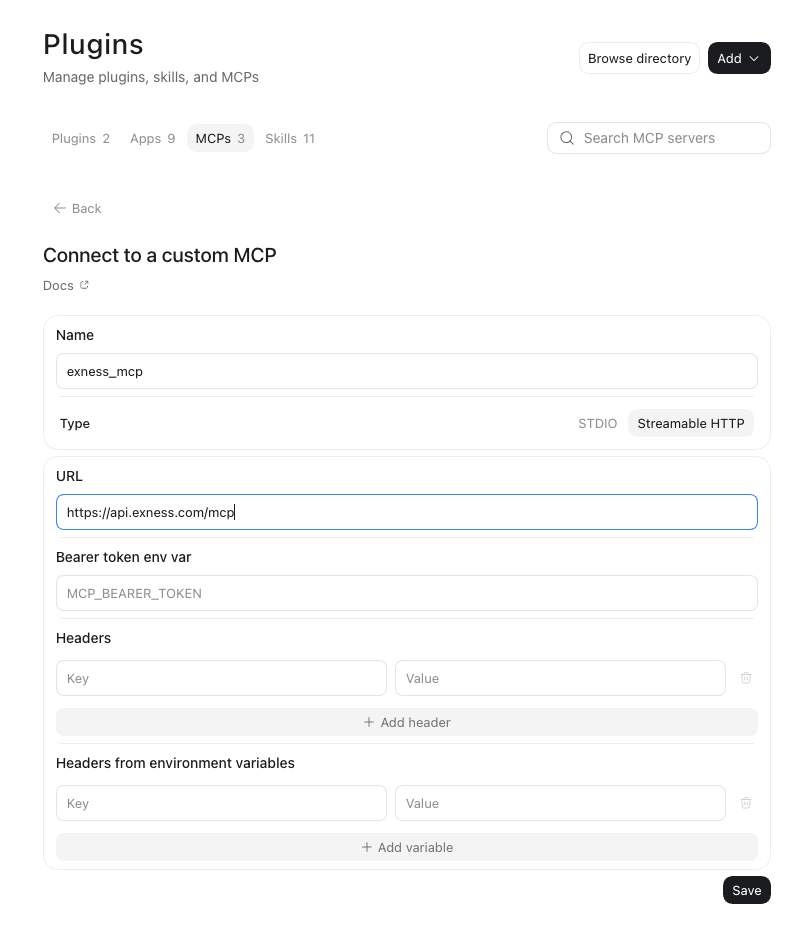
2. Enter the URL. Choose Streamable HTTP, enter https://api.exness.com/mcp, and select Save.
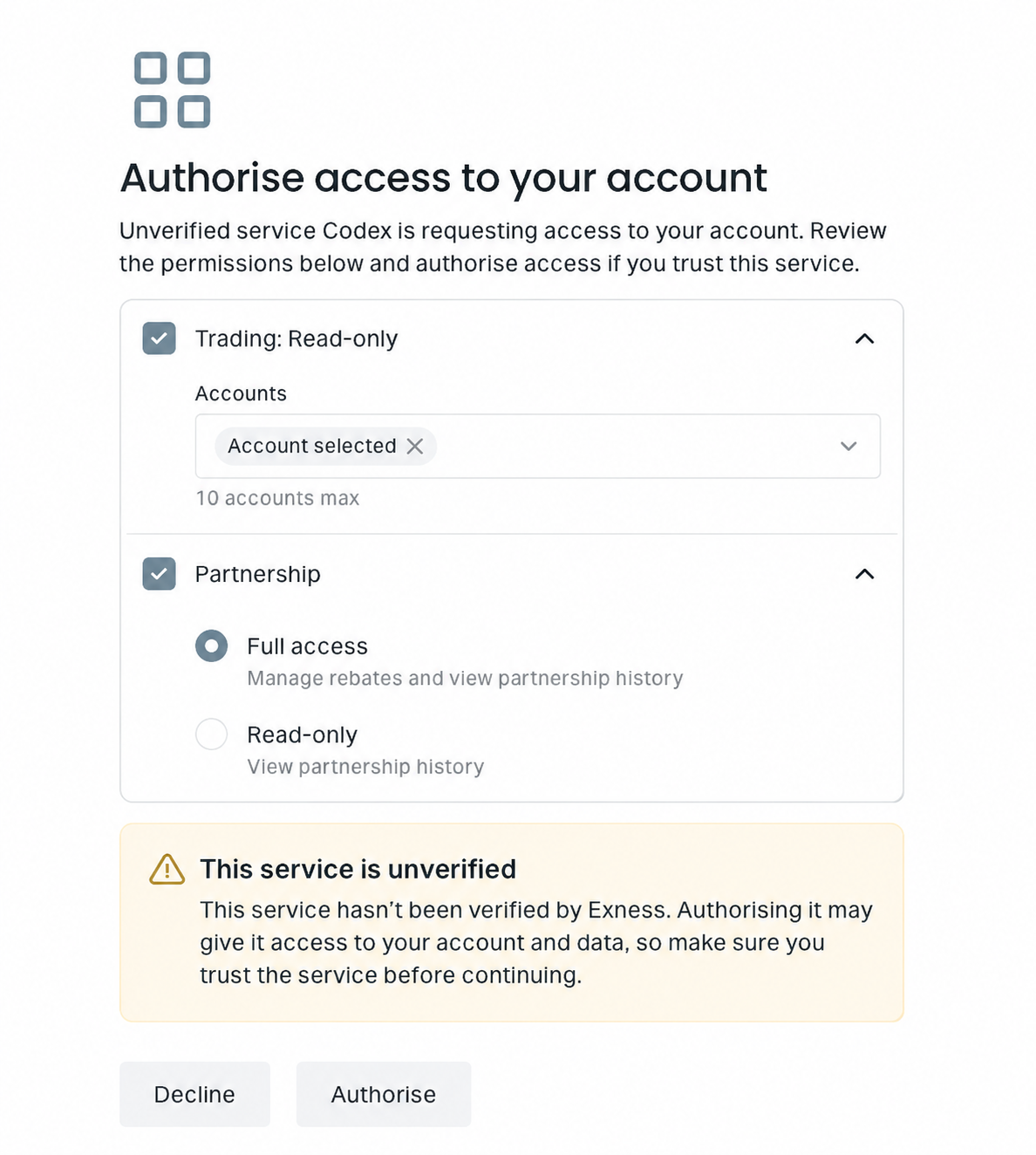
3. Authorize account access. If you are not signed in to your Exness Personal Area, sign in as usual when prompted. On the Exness authorization page, choose the Trading accounts and Partnership access you need, then authorize the connection.
Connect from Codex CLI
If you use Codex in a terminal, you can set up the connection with commands instead of the desktop interface. You need Codex CLI installed and available as codex.
1. Add the Exness MCP server. Run this command in your terminal:
codex mcp add exness --url https://api.exness.com/mcp
2. Authorize account access. If the add command opens a browser authorization flow, complete it. Otherwise, start it with:
codex mcp login exness
Sign in to your Exness Personal Area if prompted, then choose the Trading accounts and Partnership access you need and authorize the connection.
3. Check the configuration. Confirm that exness appears in your configured MCP servers:
codex mcp list
Then open Codex CLI and ask which Exness tools it can use. See the Codex MCP setup guide for more configuration options.
If you need help, see Troubleshooting.