Connect Exness by URL in ChatGPT
Connect ChatGPT directly to the Exness MCP server using its URL, then authorize access to your Exness account. This lets you use available Trading and Partnership tools through a custom MCP connection.
Connect directly in ChatGPT
Custom MCP connections depend on your ChatGPT account and workspace permissions. Before you begin, check the requirements in ChatGPT's custom MCP setup guide.
1. Add a custom MCP server. Open Plugins, then choose Add → Add custom MCP server.
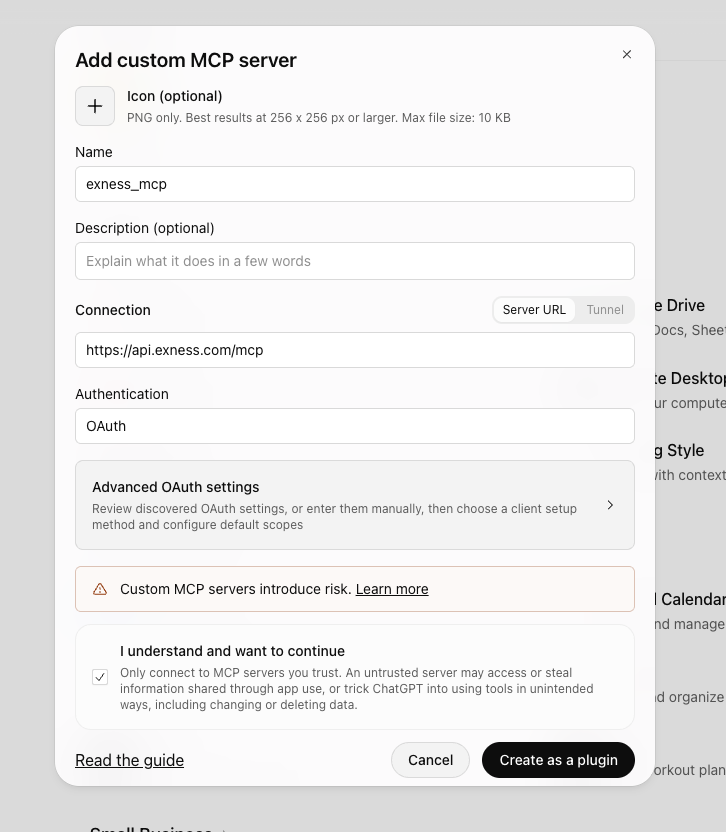
2. Enter the connection details. Enter a name, such as exness_mcp, and the server URL https://api.exness.com/mcp. Use OAuth authentication. Review the notice, select I understand and want to continue, and select Create as a plugin.
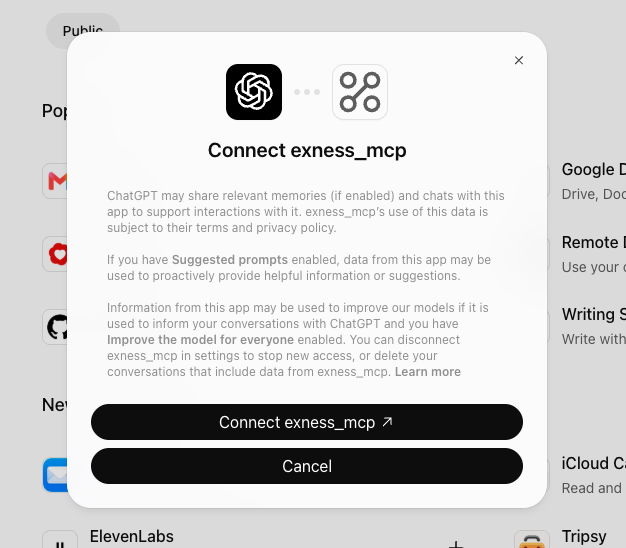
3. Connect the server. In the Connect exness_mcp dialog, select Connect exness_mcp. The name in the dialog matches the name you entered. If you are not signed in to your Exness Personal Area, sign in as usual when prompted. You will then see the Exness authorization page.
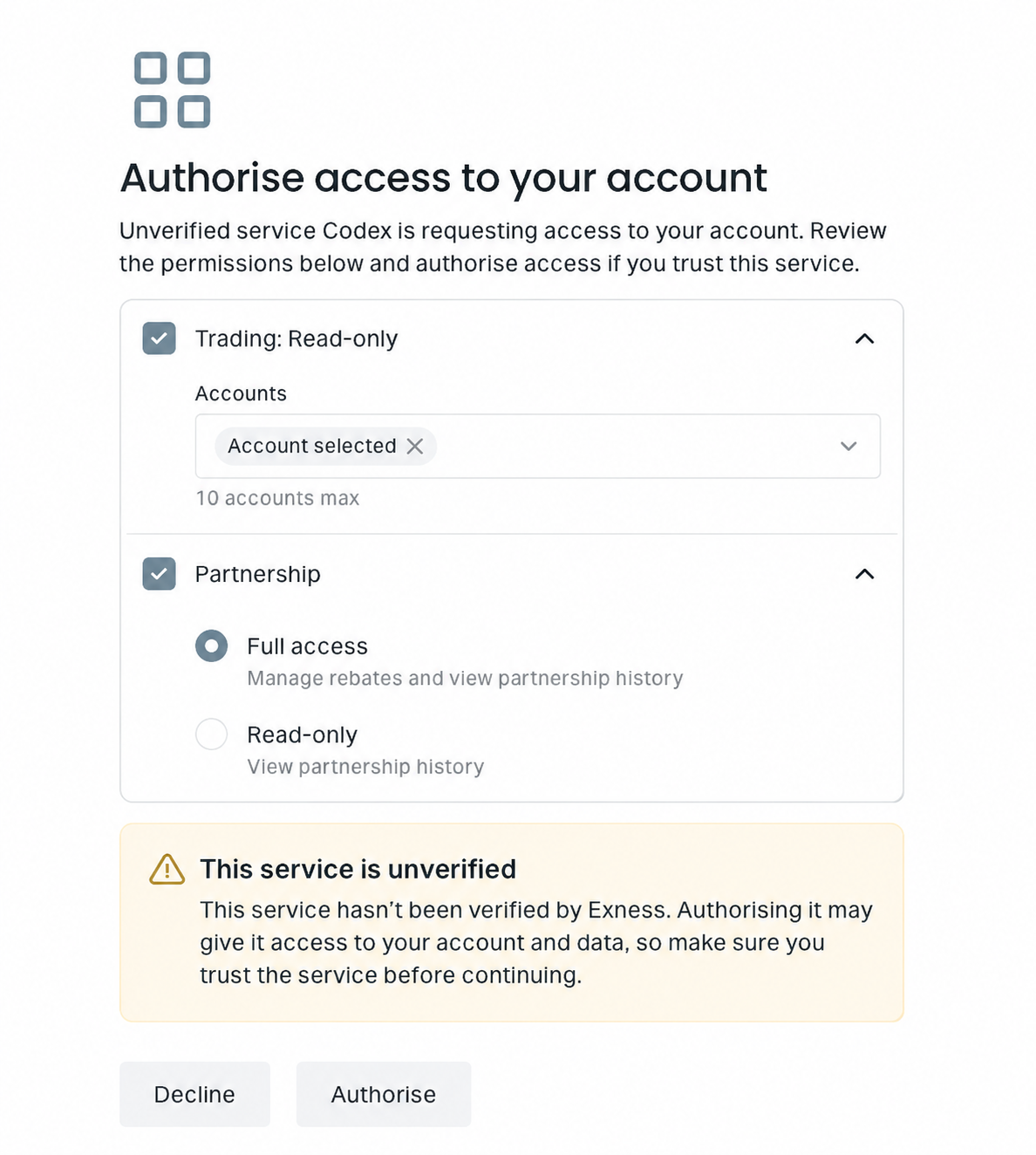
4. Authorize account access. On the Exness authorization page, choose the Trading accounts and Partnership access you need, then authorize the connection.
The example below shows the Exness authorization screen in Codex.
If you need help, see Troubleshooting.