Connect Exness in ChatGPT and Codex
Install the Exness plugin in ChatGPT or Codex and authorize access to your Exness account. You can then use available Trading and Partnership tools directly in conversations with your AI assistant.
Install the Exness plugin
The installation flow is the same in ChatGPT web and Codex. The screenshots below show the steps using ChatGPT, with the authorization screen shown in Codex.
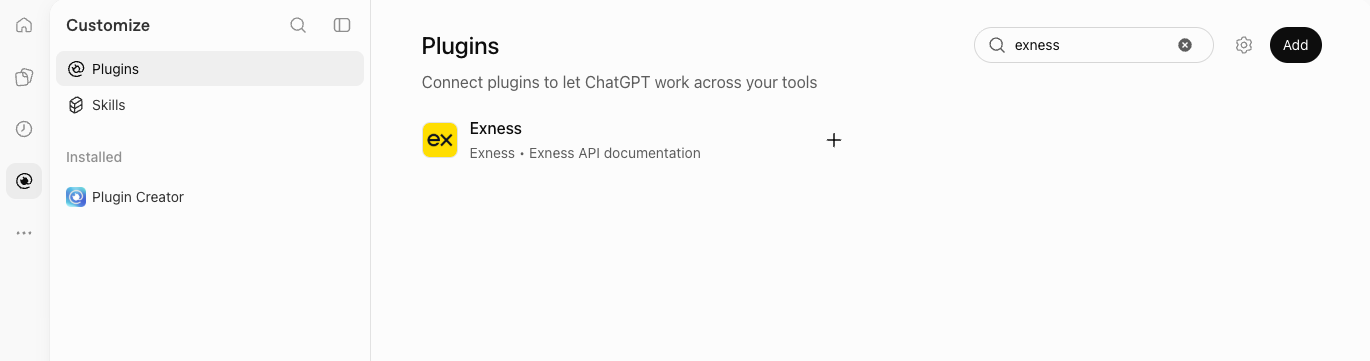
1. Find Exness. Open Plugins, search for Exness, and select + next to the result. In ChatGPT, you can also open the Exness plugin listing directly.
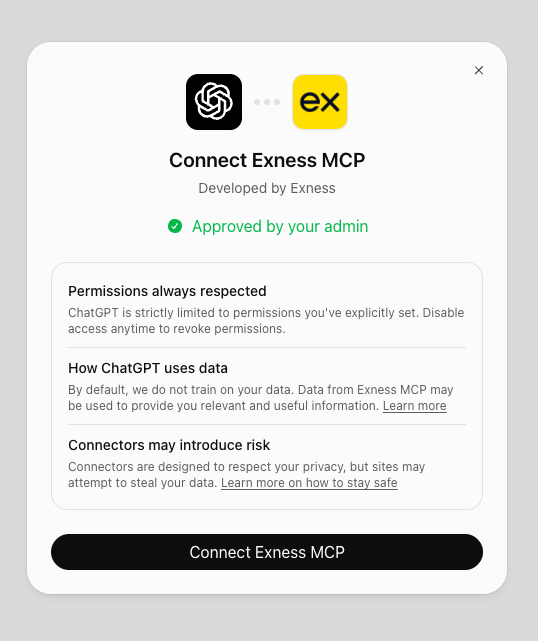
2. Connect the plugin. Review the connection dialog and select Connect Exness MCP.
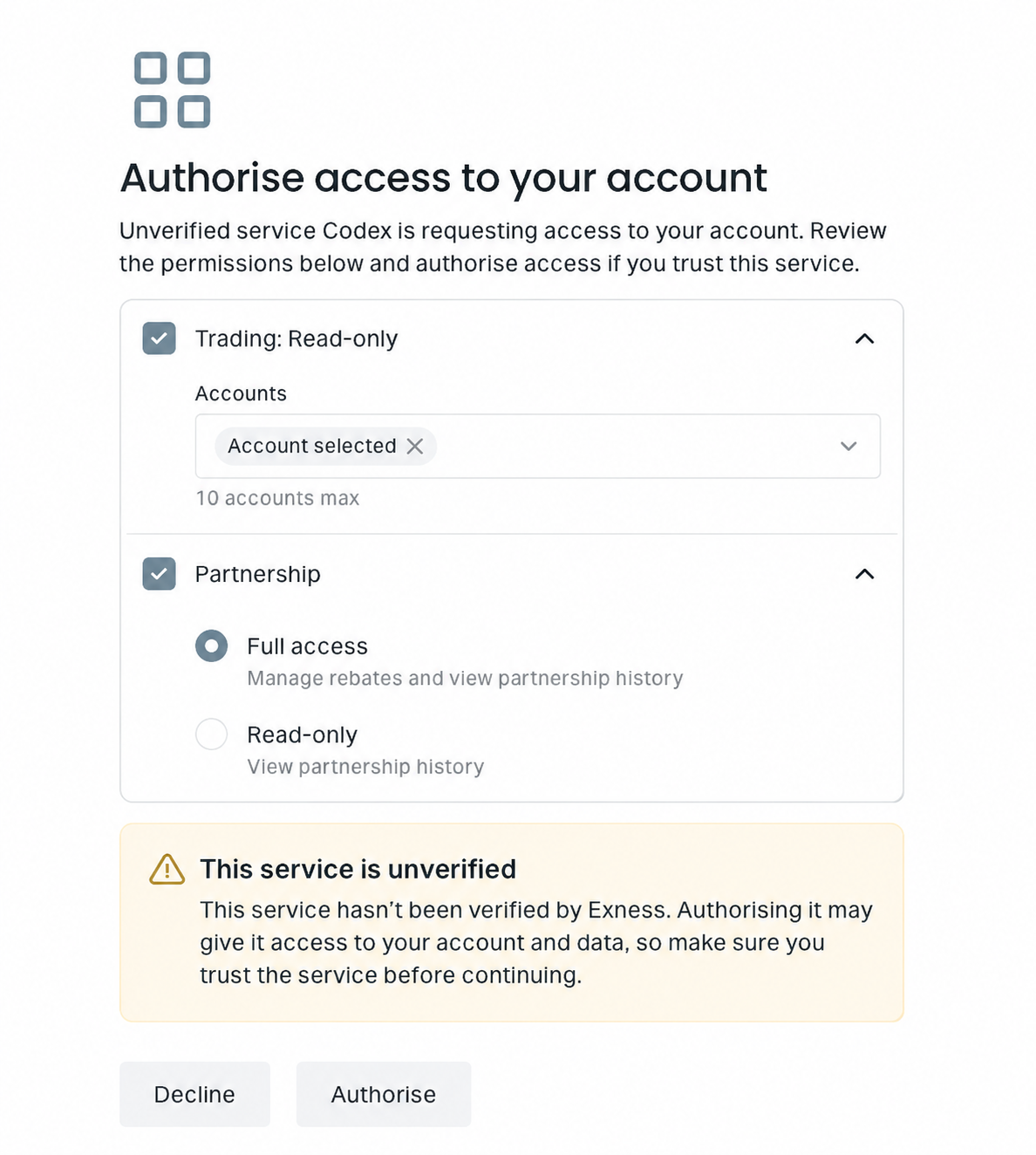
3. Authorize account access. If you are not signed in to your Exness Personal Area, sign in as usual when prompted. On the Exness authorization page, choose the Trading accounts and Partnership access you need, then authorize the connection.
The example below shows authorization in Codex.
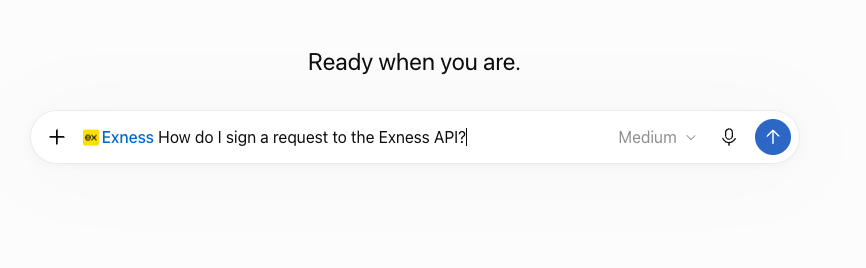
4. Start using Exness. In ChatGPT, select Try now or choose Exness in the prompt composer. In Codex, select Try now or Exness under Sources → Use plugins when available.
If you need help, see Troubleshooting.